Integrating the macOS SDK
Adding the Switchboard SDK to Your Project
You can add the SDK with Swift Package Manager or by adding the framework manually. Which one you want depends on the language you are writing:
| Swift Package Manager | Manual framework | |
|---|---|---|
| Swift / Objective-C | ✅ | ✅ |
| C++ | — | ✅ |
The Swift package ships the SwitchboardSDK.xcframework only, which exposes the Objective-C and
Swift API. The public C++ headers are not part of it. If you are writing C++, download the SDK
directly — that package contains the same xcframework plus an include/ directory with the C++
headers.
Swift Package Manager
In Xcode, choose File → Add Package Dependencies and enter:
https://github.com/switchboard-sdk/switchboard-sdk-macos
Then select the products you need. SwitchboardSDK is required; each extension is a
separate product you can add alongside it.
This package is for macOS targets. iOS projects use switchboard-sdk-ios instead. Do not add both to one project — they declare the same product and target names, so resolution fails. If you build for both platforms, add the frameworks manually as described below.
Adding the framework manually
Download the macOS SDK and add the SwitchboardSDK.xcframework file in Xcode under Frameworks, Libraries and Embedded Content. Make sure to select Embed & Sign in the Embed column.
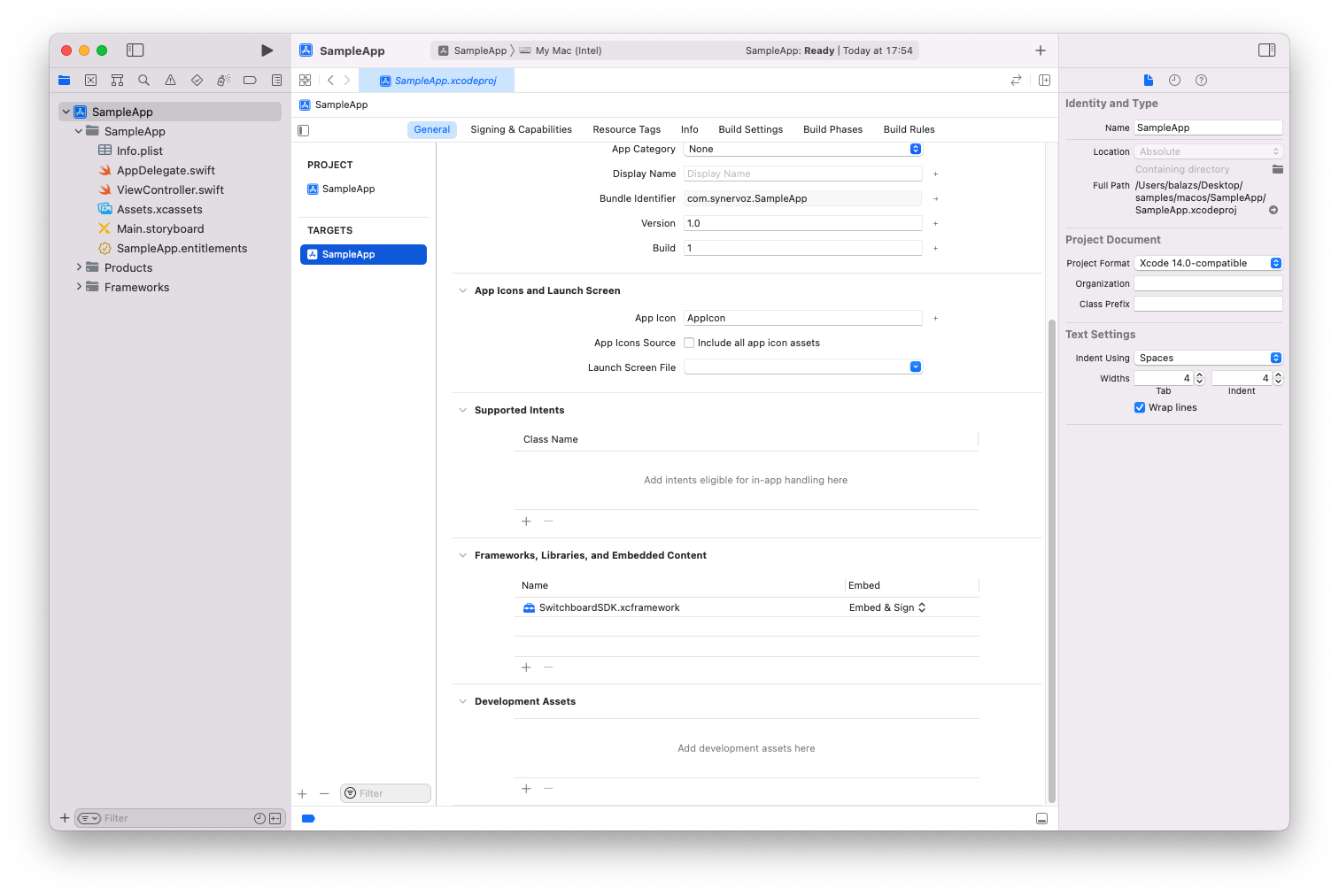
The download also contains an include/ directory with the public C++ headers, alongside the
xcframework. Add it to your header search paths to use the C++ API.
Minimum OS version
The SDK requires macOS version 11.0 or later.
Microphone Permission
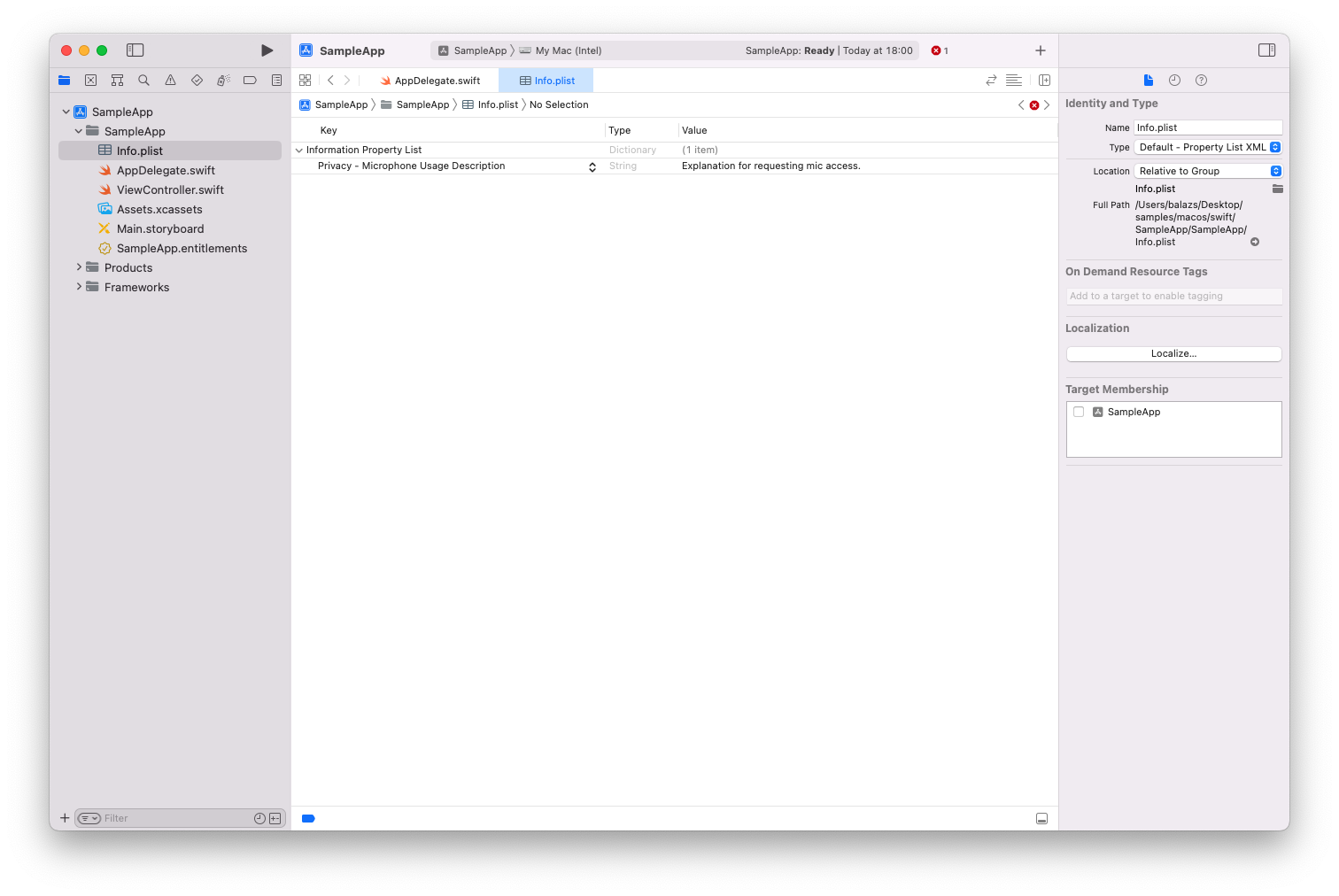
If your app uses the microphone you need to set the NSMicrophoneUsageDescription key in your project's Info.plist file. You can find more information about this flag here.
Initializing the SDK
Before you make any calls to the Switchboard SDK you need to initialize it. A typical place to do this is the AppDelegate class but you can do this anywhere in your project.
To initialize our SDK in your project, please sign up here to receive your appID and appSecret values.
It is essential to initialize the Switchboard SDK before any other Extension.
- Swift
- Objective-C
import Cocoa
import SwitchboardSDK

@main
class AppDelegate: NSObject, NSApplicationDelegate {

    func applicationDidFinishLaunching(_ aNotification: Notification) {
        // Insert code here to initialize your application
        SwitchboardSDK.initialize(
            appID: "Your app ID",
            appSecret: "Your app secret"
        )
    }

    ...
}
#import "AppDelegate.h"
#import <SwitchboardSDK/SwitchboardSDK.h>

@interface AppDelegate ()

@end

@implementation AppDelegate

- (BOOL)application:(UIApplication *)application didFinishLaunchingWithOptions:(NSDictionary *)launchOptions {
    // Override point for customization after application launch.
    [SwitchboardSDK initializeWithAppID:@"Your app ID" appSecret:@"Your app secret"];
    return YES;
}

...

@end